> ## Documentation Index
> Fetch the complete documentation index at: https://factory-docs-cli-sandbox-mcp-whole-process.mintlify.site/llms.txt
> Use this file to discover all available pages before exploring further.
# Automations
> Create and manage Factory automations that run workflows across your software delivery lifecycle.
Automations turn Droid into a teammate for repeatable engineering work. They run from schedules, Slack messages, or GitHub events, covering code review, QA, AutoWiki, security audits, triage, incident response, Slack intake, and scheduled checks.
 ## What Automations are
An automation has:
* **A trigger**: when it starts.
* **Instructions**: the prompt that's delegated to Droid.
* **A run target**: where Droid runs, such as a computer, Slack channel, or GitHub workflow.
* **Visibility**: who can view or manage it.
### When to use Automations
Use Automations when a workflow should run repeatedly, start from an event, or be shared with a team instead of handled manually each time.
## How to use Automations
### View your automations
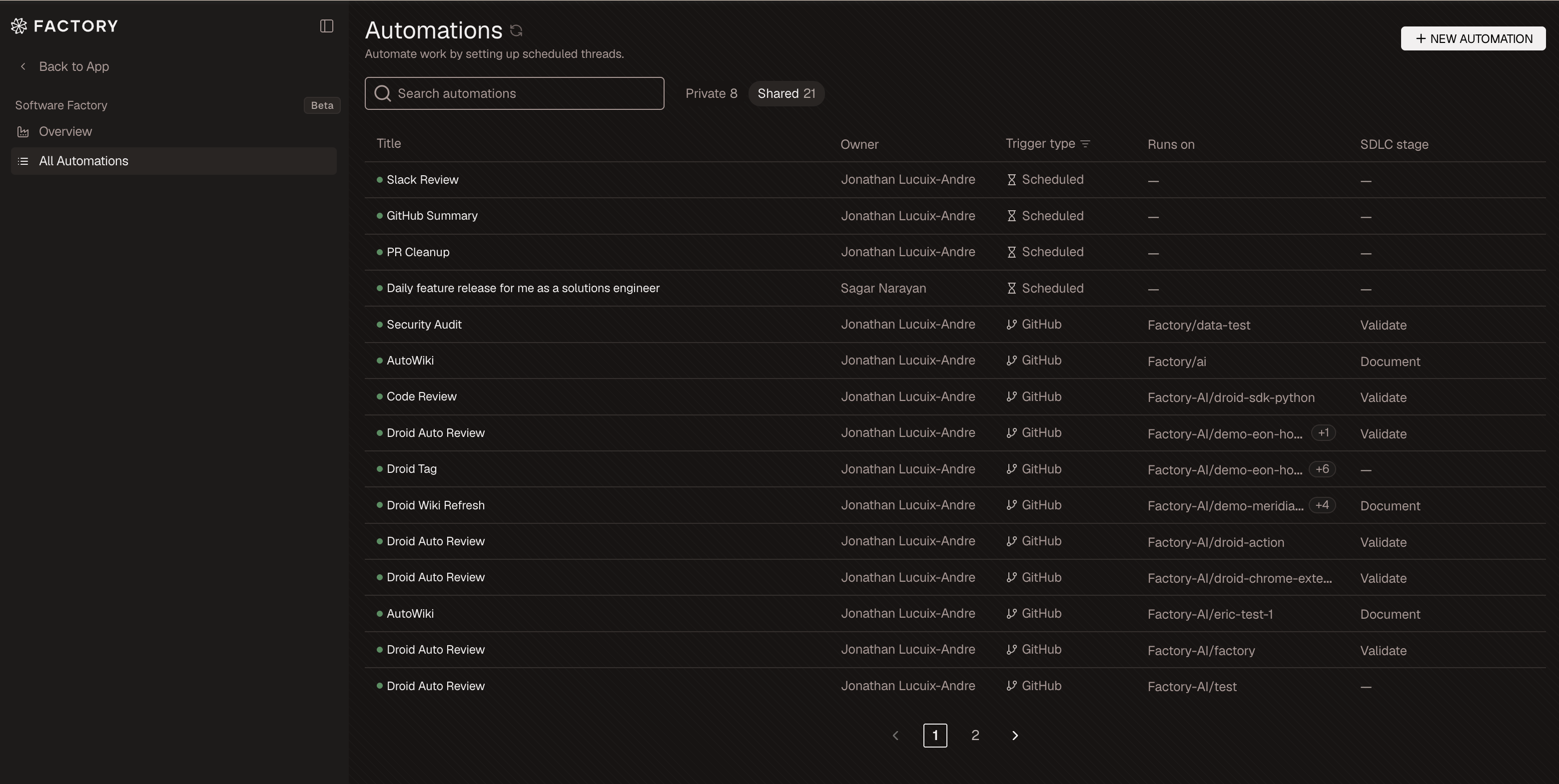
Open [**All Automations**](https://app.factory.ai/automations) under **Software Factory** in the Factory App sidebar. From the list, you can:
* Search by title, description, or SDLC stage.
* Switch between **Private** and **Shared**.
* Filter by trigger type: **Scheduled**, **Slack**, or **GitHub**.
* See owner, status, run target, and SDLC stage.
### Create a new automation
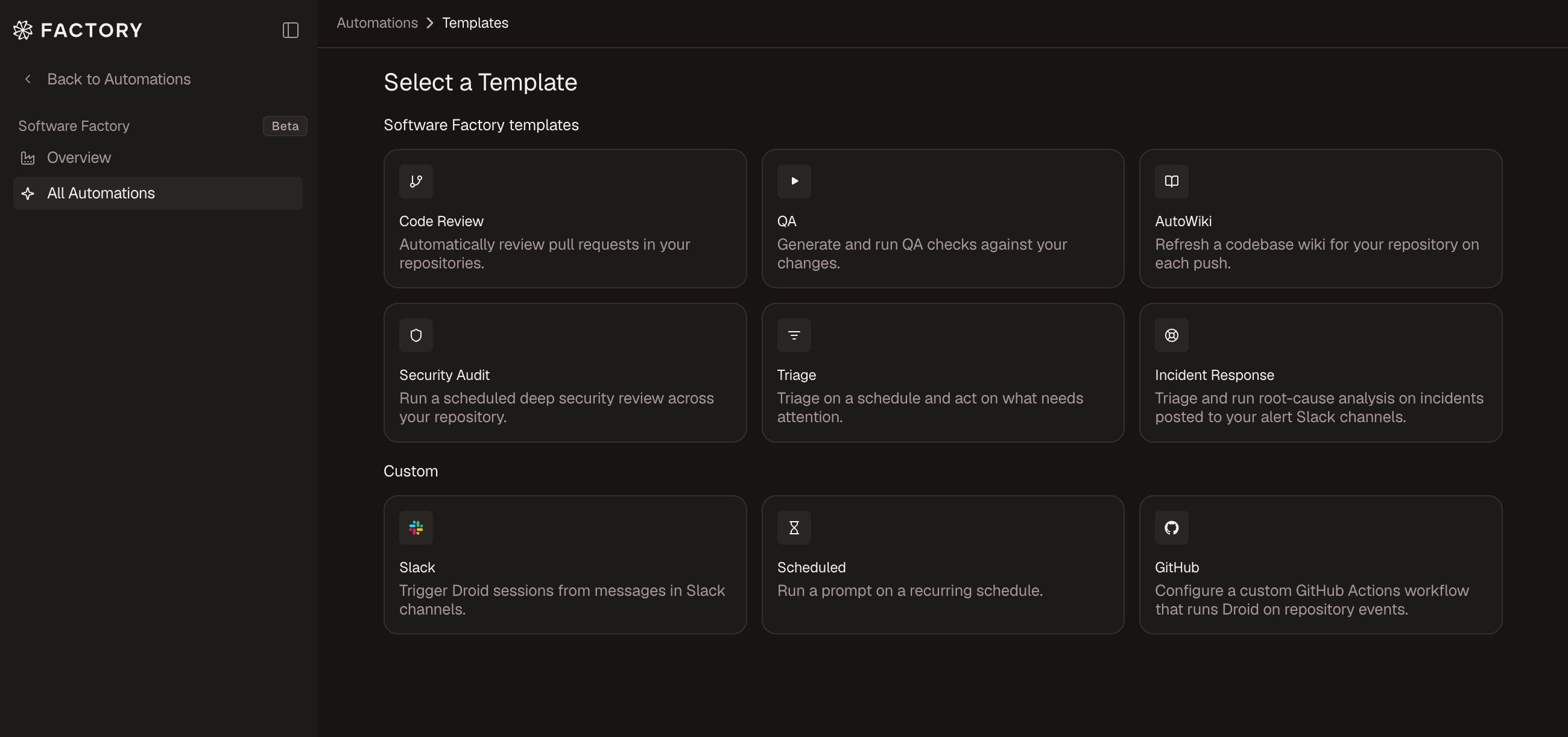
Click **New automation**, then choose a template. Software Factory templates map to SDLC stages, while custom templates give you flexible starting points for your own triggers and workflows.
## What Automations are
An automation has:
* **A trigger**: when it starts.
* **Instructions**: the prompt that's delegated to Droid.
* **A run target**: where Droid runs, such as a computer, Slack channel, or GitHub workflow.
* **Visibility**: who can view or manage it.
### When to use Automations
Use Automations when a workflow should run repeatedly, start from an event, or be shared with a team instead of handled manually each time.
## How to use Automations
### View your automations
Open [**All Automations**](https://app.factory.ai/automations) under **Software Factory** in the Factory App sidebar. From the list, you can:
* Search by title, description, or SDLC stage.
* Switch between **Private** and **Shared**.
* Filter by trigger type: **Scheduled**, **Slack**, or **GitHub**.
* See owner, status, run target, and SDLC stage.
### Create a new automation
Click **New automation**, then choose a template. Software Factory templates map to SDLC stages, while custom templates give you flexible starting points for your own triggers and workflows.
 #### Software Factory templates
Use these templates to add automation to specific SDLC stages in Software Factory.
| Template | Use it for |
| --------------------- | --------------------------------------- |
| **Code Review** | Review pull requests automatically. |
| **QA** | Generate and run QA checks. |
| **AutoWiki** | Refresh repository documentation. |
| **Security Audit** | Run scheduled deep security reviews. |
| **Triage** | Scan intake sources and route work. |
| **Incident Response** | Investigate alerts from Slack channels. |
#### Custom templates
Use these templates to create automations around your own channels, schedules, and GitHub events.
| Template | Use it for |
| ------------- | --------------------------------------------- |
| **Slack** | Trigger Droid sessions from Slack messages. |
| **Scheduled** | Run a prompt on a recurring schedule. |
| **GitHub** | Run Droid from custom GitHub workflow events. |
### Configure triggers
After you select a template, Factory tailors setup to the trigger and destination.
#### Software Factory templates
Use these templates to add automation to specific SDLC stages in Software Factory.
| Template | Use it for |
| --------------------- | --------------------------------------- |
| **Code Review** | Review pull requests automatically. |
| **QA** | Generate and run QA checks. |
| **AutoWiki** | Refresh repository documentation. |
| **Security Audit** | Run scheduled deep security reviews. |
| **Triage** | Scan intake sources and route work. |
| **Incident Response** | Investigate alerts from Slack channels. |
#### Custom templates
Use these templates to create automations around your own channels, schedules, and GitHub events.
| Template | Use it for |
| ------------- | --------------------------------------------- |
| **Slack** | Trigger Droid sessions from Slack messages. |
| **Scheduled** | Run a prompt on a recurring schedule. |
| **GitHub** | Run Droid from custom GitHub workflow events. |
### Configure triggers
After you select a template, Factory tailors setup to the trigger and destination.
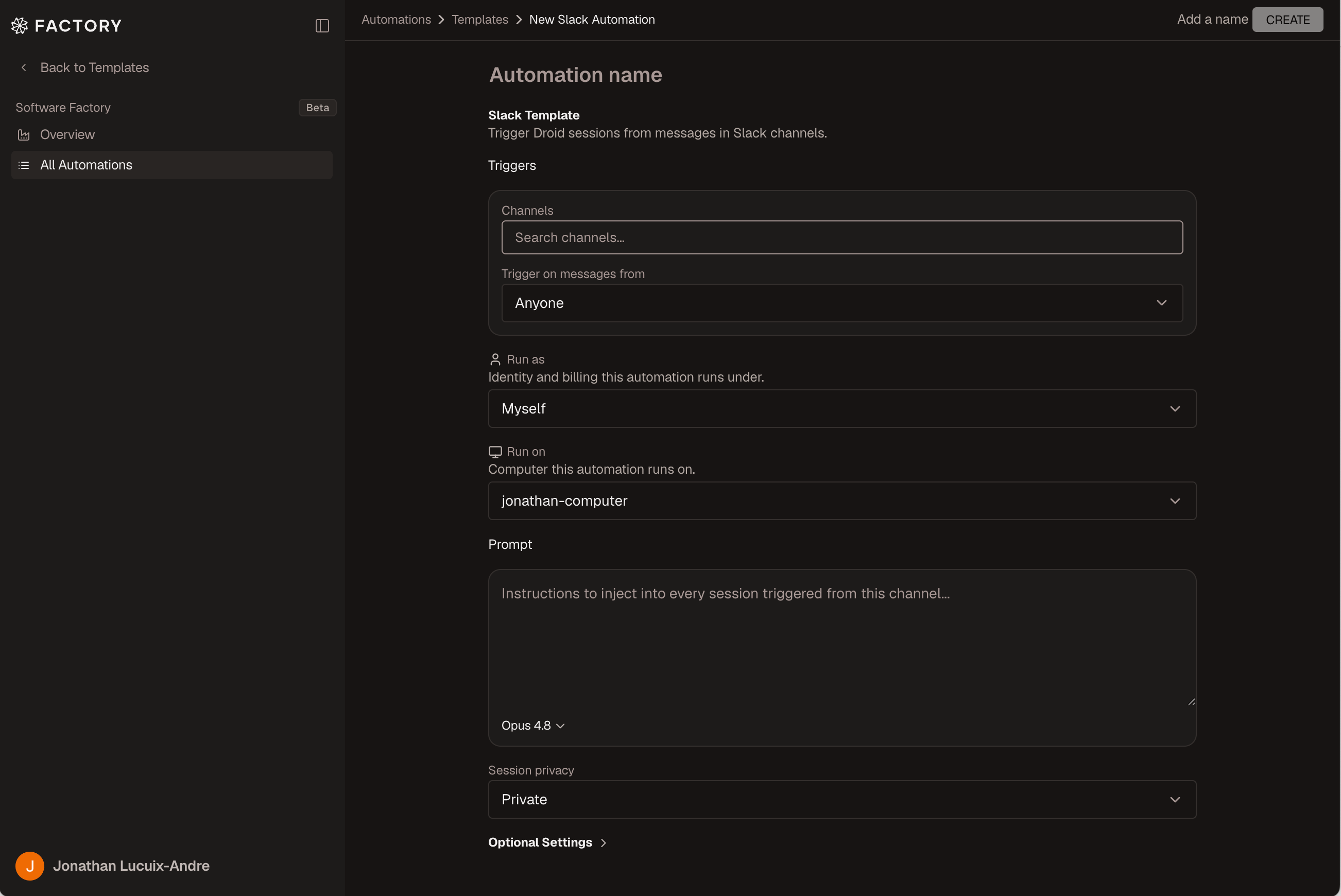 | Trigger type | What you configure |
| ------------- | --------------------------------------------------------------------------- |
| **Scheduled** | Schedule, prompt, run target, model, and optional working directory. |
| **Slack** | Channels, message source, prompt, run target, privacy, keywords, and model. |
| **GitHub** | Repositories, events, workflow settings, and template-specific options. |
### Manage an automation
Select an automation row to open its detail view. Depending on the trigger type and your permissions, you can run now, pause, resume, share, fork, rename, edit, or delete the automation.
## Automation settings
### Trigger types
Trigger types define what starts an automation and what context Droid receives:
* **Scheduled automations** run a prompt on a natural-language or cron schedule.
* **Slack automations** start sessions from configured Slack channels. You can limit triggers by message source or keywords.
* **GitHub automations** run through GitHub workflow files and can respond to events like pull requests, pushes, comments, labels, and checks.
### Run target, identity, and model
Use run settings to control how Droid executes the automation:
* **Run as**: the user or service account the automation runs under.
* **Run on**: the computer where Droid runs.
* **Model**: the model used for automation runs.
For shared team workflows, use [service accounts](/enterprise/service-accounts) and [Droid Computers](/cli/features/droid-computers) to keep runs on a stable identity and environment.
### Visibility and ownership
* **Private** automations are visible only to the owner.
* **Shared** automations are visible to the organization.
* Owners can edit, share, pause, resume, or delete automations.
* Non-owners can fork shared automations when they need their own copy.
### Run history and dashboards
Automation detail views show recent runs and statuses. Scheduled automations can also show visual dashboard output generated by the automation, such as tables, charts, or summaries.
| Trigger type | What you configure |
| ------------- | --------------------------------------------------------------------------- |
| **Scheduled** | Schedule, prompt, run target, model, and optional working directory. |
| **Slack** | Channels, message source, prompt, run target, privacy, keywords, and model. |
| **GitHub** | Repositories, events, workflow settings, and template-specific options. |
### Manage an automation
Select an automation row to open its detail view. Depending on the trigger type and your permissions, you can run now, pause, resume, share, fork, rename, edit, or delete the automation.
## Automation settings
### Trigger types
Trigger types define what starts an automation and what context Droid receives:
* **Scheduled automations** run a prompt on a natural-language or cron schedule.
* **Slack automations** start sessions from configured Slack channels. You can limit triggers by message source or keywords.
* **GitHub automations** run through GitHub workflow files and can respond to events like pull requests, pushes, comments, labels, and checks.
### Run target, identity, and model
Use run settings to control how Droid executes the automation:
* **Run as**: the user or service account the automation runs under.
* **Run on**: the computer where Droid runs.
* **Model**: the model used for automation runs.
For shared team workflows, use [service accounts](/enterprise/service-accounts) and [Droid Computers](/cli/features/droid-computers) to keep runs on a stable identity and environment.
### Visibility and ownership
* **Private** automations are visible only to the owner.
* **Shared** automations are visible to the organization.
* Owners can edit, share, pause, resume, or delete automations.
* Non-owners can fork shared automations when they need their own copy.
### Run history and dashboards
Automation detail views show recent runs and statuses. Scheduled automations can also show visual dashboard output generated by the automation, such as tables, charts, or summaries.