> ## Documentation Index
> Fetch the complete documentation index at: https://factory-docs-cli-sandbox-mcp-whole-process.mintlify.site/llms.txt
> Use this file to discover all available pages before exploring further.
# Running in the Desktop/Web
> Use Factory Missions in the Desktop and Web app to plan and execute large, multi-feature projects with structured orchestration.
## The Mission Control Dashboard
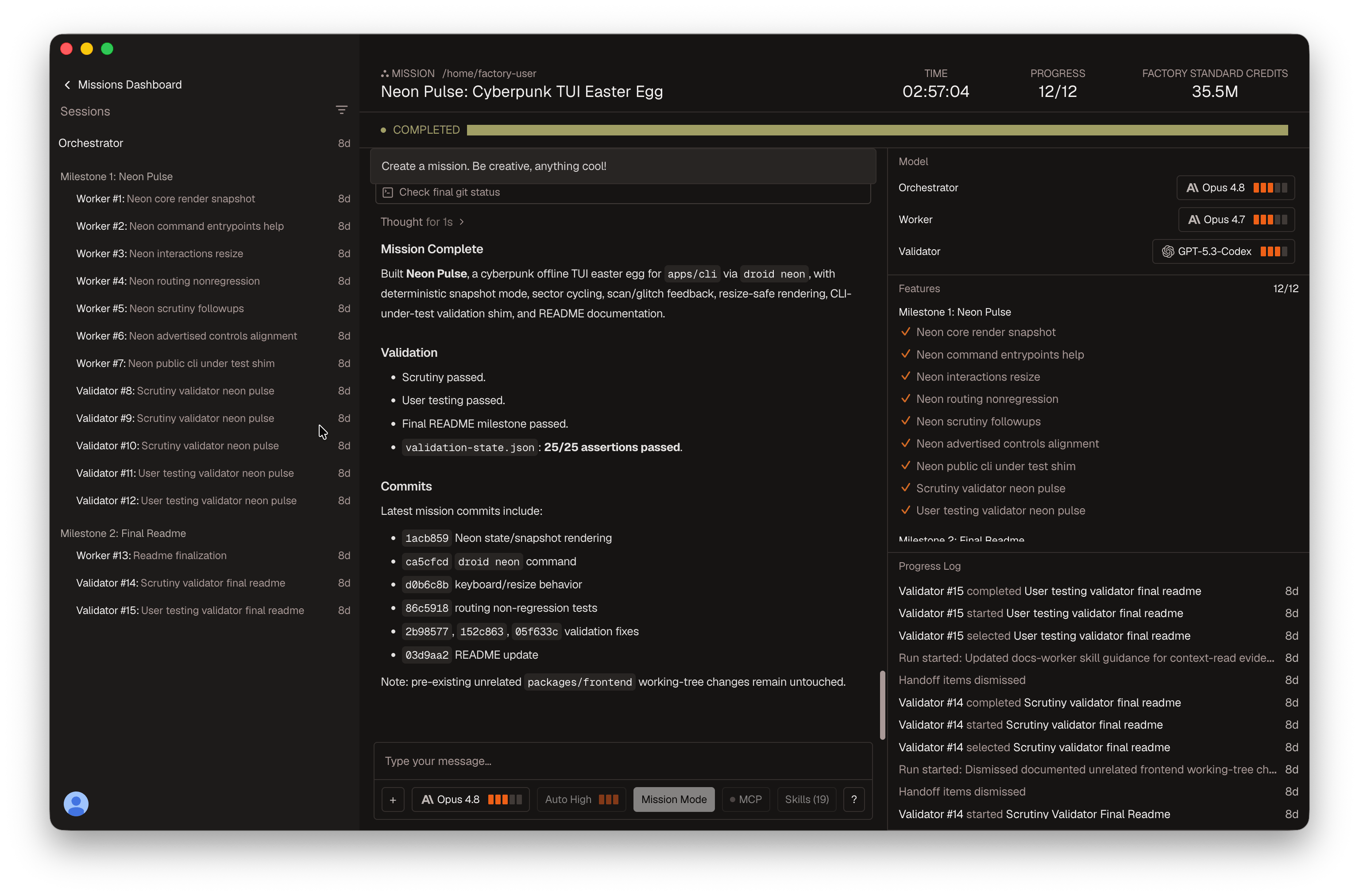
While you can run Missions from the CLI, the Factory Desktop and Web applications provide a rich, visual Mission Control dashboard. This interface is designed to help you act as a project manager—giving you greater visibility into what your orchestrator, workers, and validators are doing.
## Starting and Resuming Missions
* **Start a new mission:** You can select **Mission mode** when creating a new session, or start a mission directly from the Mission Control page.
* **Continue a past mission:** Navigate to the [Mission Control tab](https://app.factory.ai/missions) to find past missions, review their current state, and resume execution exactly where you left off.
* **Run on remote machines:** When starting a mission, you can select a **Droid Computer** as your target environment. This allows long-running missions to execute safely in the background on persistent remote machines without tying up your local workspace.
## Navigating the UI
The Mission Control dashboard gives you real-time visibility into your multi-agent workflows:
* **Track Progress:** See exactly what has been done so far. The top bar tracks overall time and credits, while the right sidebar maintains a live progress log of every worker and milestone.
* **Select Models:** Use the model dropdowns in the right sidebar to configure different models for the Orchestrator, Worker, and Validator agents on the fly.
* **Inspect Features:** The main view provides a high-level summary of the active milestone. You can drill down into any feature to review its specific validation criteria and commits.
* **Examine Workers:** The left sidebar lists all active and completed workers. Select a specific worker to view its detailed terminal output, thought process, and any sub-tasks it completed.
* **Intervene & Redirect:** If a Mission appears stuck or priorities change, pause the orchestrator directly from the UI, instruct it to re-assess or re-plan, and then resume execution.
## See also
* [Factory Missions overview](/features/missions/overview) -- Concepts and how Missions work
* [Planning & Validation](/features/missions/planning) -- Get the upfront plan right
* [Running in the CLI](/cli/features/missions/running-cli) -- Monitor and steer execution from the terminal
* [Troubleshooting](/features/missions/troubleshooting) -- Recover from frozen missions, stuck workers, and blocked milestones
* [Configuration & Reference](/features/missions/reference) -- Headless execution, settings, and enterprise policy