

Prerequisites
- A Factory account with admin privileges
- Admin access to your Slack workspace
- Ability to install apps in your Slack workspace
Integration Steps
Access Slack integration settings
Log in to your Factory account, open Settings → Organization, then find Slack under Org Integrations.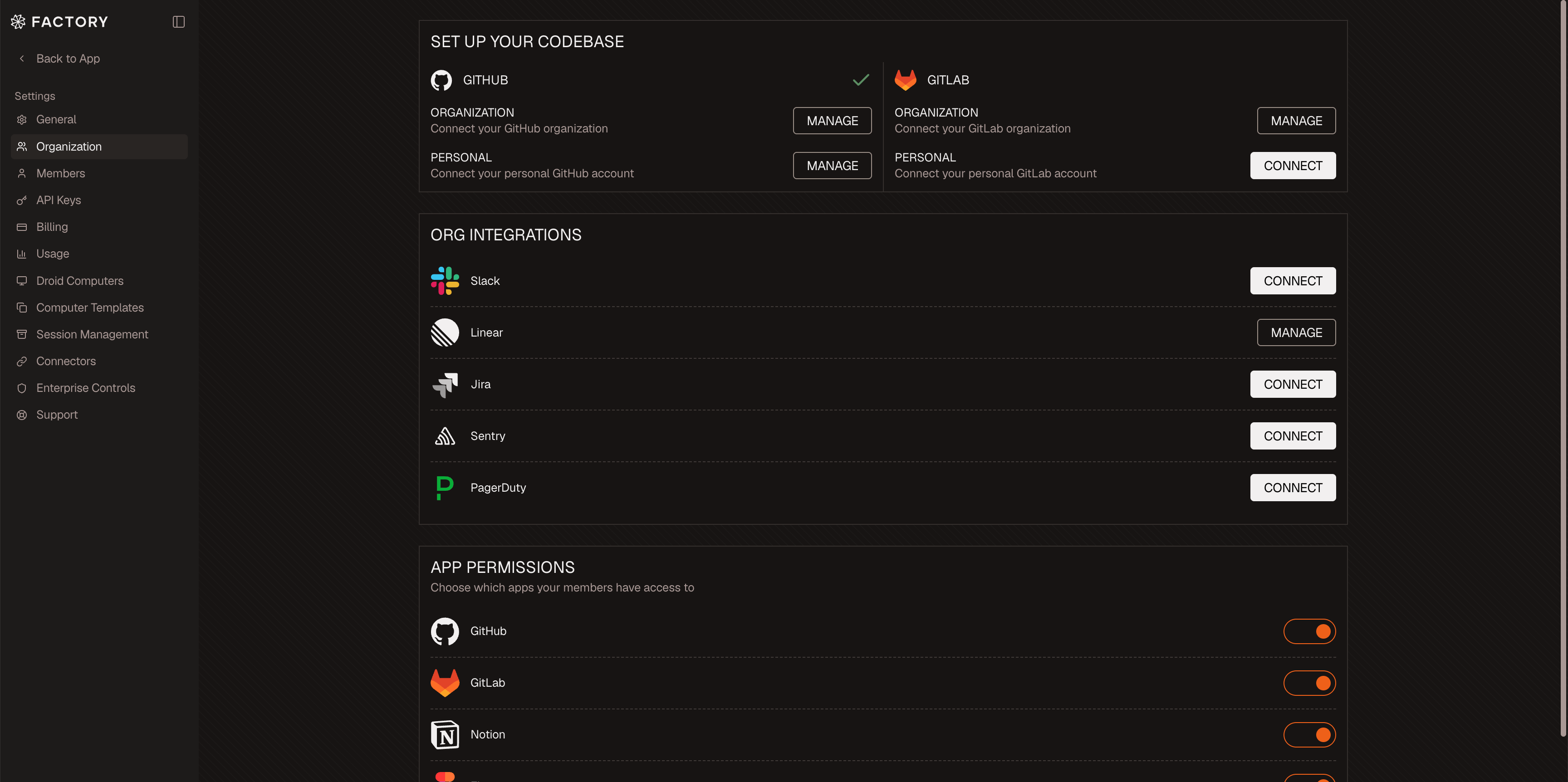
Initiate Slack Integration
Click Connect, or Manage if Slack is already installed, to start the integration process. If you are updating an existing Slack install for the latest permissions, click Reconnect from the integration details to rerun the install flow.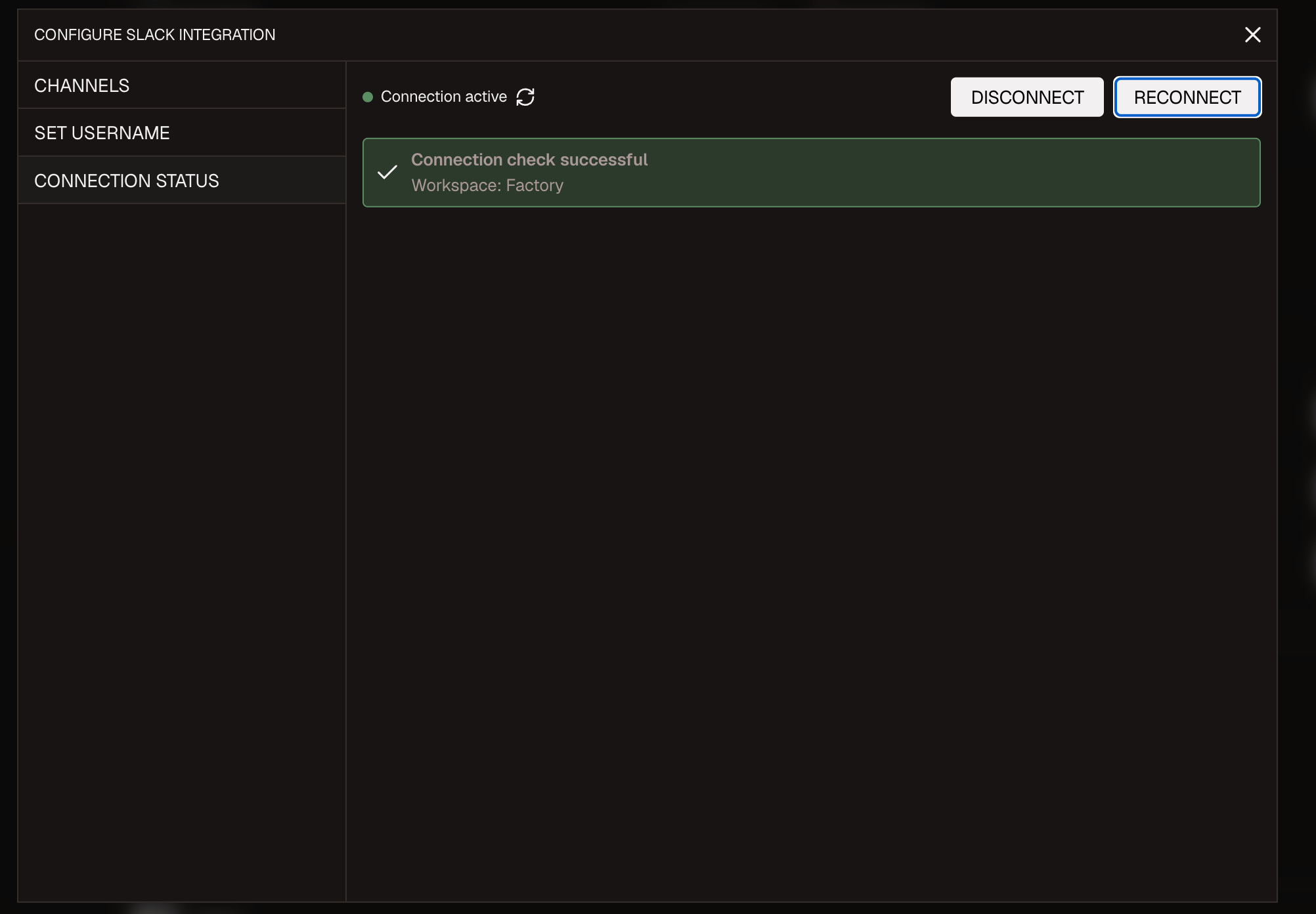
Authorize Factory's Slack Application
You’ll be redirected to Slack. Review the requested permissions and click “Allow” to authorize Factory access to your Slack workspace.
Select Workspace
If you belong to multiple workspaces, select the workspace you want to connect to Factory.
Confirm Integration
After authorization, you’ll be redirected back to Factory. Verify that the integration status shows as “Connected”.
Verification
To ensure the integration is working correctly:- Mention
@Factoryin a thread within a channel where the app has been added. - Verify that Factory responds with a link to open the conversation in Factory.
- Click the link and confirm that the Slack thread content appears in your new Factory session.
- If you reran the install flow for the latest permissions, test with a thread that includes an image attachment and confirm Droid can use it as context.
- If your workflow posts results back to Slack, confirm Droid can upload a generated file or short result video to the thread.
Capabilities
With the Slack integration, you can:- Mention
@Factoryin any Slack thread to start a Droid session from that thread - Continue the session on Web or Desktop
- Import full Slack thread context into Factory by clicking the provided link
- Include supported image attachments from Slack as session context
- Have Droid post messages, generated files, artifacts, and result videos back to Slack
- Send follow-up messages and attachments from Slack into an active Droid session
- Reference Slack threads in Factory by pasting a thread URL into a Factory chat
Slack settings
After Slack is connected, click Manage from Settings → Organization to configure Slack channel settings. These settings are only needed for Incident Response and service-account workflows; standard@Factory mentions work without configuring channels here.
In channel settings, you can enable a channel, expand it, and configure Run as, Incident Response, Machine Type, Computer or Workspace, Session Visibility, Model, and Custom Prompt. Only channels where the Factory app has been invited appear in this list.
Service accounts
Use service accounts when Slack sessions should run from a shared identity and a preconfigured Droid Computer instead of the Slack user who mentions Factory. This is useful for incident, operations, or release channels that need consistent credentials and tool access. Before using a service account with Slack, make sure:- Service accounts are enabled for your organization.
- The service account is active.
- The service account owns at least one Droid Computer.
- The Factory app has been invited to the Slack channel.
Open Slack channel settings
In Factory, go to Settings → Integrations → Slack → Channels. Enable the channel and expand its settings.
Choose the run identity
If the Run as row appears, select the service account. Selecting a service account makes the channel run with that service account’s identity and computers.
Choose the computer
Service account Slack sessions run on Droid Computers. When a service account is selected, Factory locks the target to Computer and only shows computers owned by that service account.
Configure Auto-Run if needed
For automated channel workflows, turn on Auto-Run and configure the prompt, model, and visibility settings for that channel.
Best Practices
- Add the Factory app only to channels where development discussions occur.
- Use threads rather than channel messages when mentioning Factory.
- Provide sufficient context in the Slack thread before mentioning Factory.
- Regularly review the permissions granted to the Factory app in your Slack settings.
Troubleshooting
If you encounter issues during integration:- Ensure you have admin rights in both Factory and your Slack workspace.
- Verify that the Factory app has been added to the channel where you’re mentioning it.
- If Droid cannot read image attachments or upload files/videos, rerun the Slack install flow above to refresh the Factory Slack app’s permissions.
- If you see a “not_in_channel” error toast when trying to paste a Slack thread URL, it means the Factory bot needs to be invited to that channel. Use
/invite @Factoryin the channel to resolve this issue. - Check that your organization’s firewall isn’t blocking webhook communications.
- For persistent issues, contact Factory support with specific error messages.
Security and Compliance
Visit Factory’s Trust Center for compliance documents, certifications, and security resources